
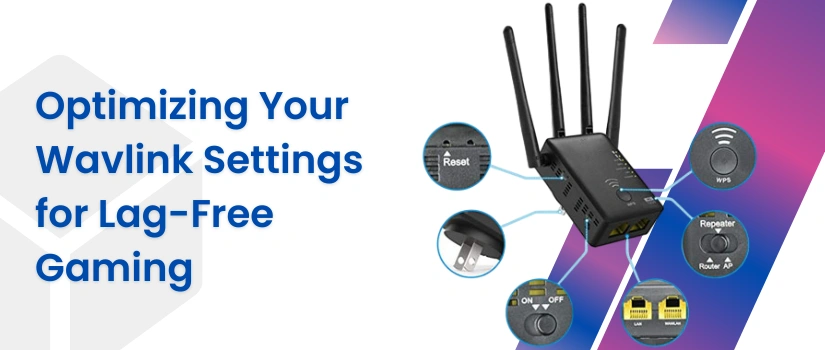
Optimizing Your Wavlink Settings for Lag-Free Gaming
Online game and require a fast and stable network connection. A wavlink device is the best option to have a stable and strong network all over your area. You need to optimize your wavlink extender or router device properly to get a better network. Proper configuration can make a big difference in reducing lag, lowering pings and improving over all gameplay. You can easily optimize your network if you make the following few simple adjustments to your network for a smoother gaming experience.
Choose The Right Band
Most wavlink devices offer dual or tri band connectivity. The 5GHz band is ideal for gaming because it offers fast speed and low latency. So whenever you are playing a game you should choose a five GHz network.
Place Your Extender Correctly
Placement of the extender device plays a key role in the performance. You should position your wavelength extender closer to the router rather than your gaming device. This will help the extender receive a strong signal and transmit it effectively. Do not put the extender close to thick walls, metal surfaces or other electronics that might create trouble.
Enable Quality Of Service
Quality of service allows you to prioritize gaming traffic over other activities. You should enable these settings by accessing the admin panel of your device.
Reduce Network Congestion
If you are using multiple devices with the same network and suffering performance problems while gaming then you should limit the number of connections. Disconnecting the unused devices or the devices with heavy activity would like videos streaming while gaming will free up the bandwidth and reduce lag.
Update From Where Regularly
Outdated firmware will create performance and connectivity issues. If you are facing lag or buffer while playing a game then you should check that your Wavlink device firmware is the updated version or not. If the firmware is outdated then you should install the latest version.
Use A Wired Connection
For the best gaming experience you should consider connecting your gaming console or PC directly to the device using an ethernet cable. A wired connection provides a more stable connection compared to Wi-Fi.
Change Wi-Fi Channel
Wi-Fi interference from nearby networks can lag. You should access the settings of your Wavlink device and switch to a less crowded channel.
Restart Your Network
Sometimes a simple restart can resolve several issues including lag issues. You just need to turn off the power of your Wavlink devices. Wait for a few seconds and then you need to power them again. Wait for the device to start properly again.
Connect Us
You need to connect us if you are facing any problem in optimising your Wavlink Settings for Lag-Free Gaming. Our technical team is here to assist you with the right network settings to optimize your network. Our team is available on calls as well as under the live chat section you can text them. One of our representatives will revert you and help you in getting a better network connection.