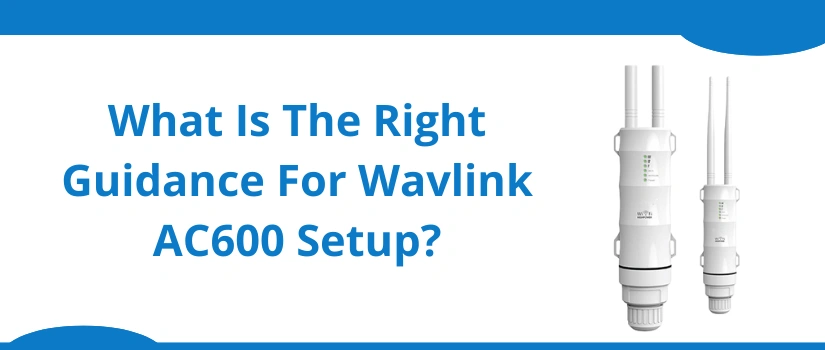
Confused as to how you can operate your Wavlink ac600 outdoor wifi range extender? If yes, then first you need not panic because the setup process is quite simple and can easily be done quickly with the help of this particular blog post. We’ll share not one but two different methods for Wavlink ac600 setup. The first method uses a simple WPS button whereas the second method offers a more hands on approach using a web browser. No matter which option you choose, both are dependable and easy.
Wavlink AC600 Setup: Method 1
First of all you need to join the complete hardware together. Once that’s done follow these steps:
- Power on the router as well as your Wavlink ac600 extender closer to each other.
- Wait for the gadgets power LED to turn stable. This can take up sometime so be patient.
- Now locate the WPS button on your Wavlink ac600. As you find it, push it. The WPS LED will pulsate.
- Immediately not taking more than 120 seconds, locate and push the router’s WPS Button. Its WPS LED will also start flashing. This means the router is looking for its pairing device.
- Finally hold on for a few moments. The WPS LEDs will eventually turn stable. This indicates a successful setup.
- Lastly, wrap up the Wavlink ac600 setup by repositioning the extender in your outdoor areas. Just ensure the extender is able to receive not less that 50 percent signals from the host device which is your router.
Method 2: Setup Using Web Browser
For Wavlink ac600 setup using an internet browser you need access to the router’s network details, a smart device, web browser and default information which you can easily find in the user manual. Now check out the setup guidance:
- Place the ac600 close to the router. Power it up. Hold on till the power LED turns steady.
- Pick up smartdevice. Go to its settings. Enable wifi. Now on your ac600 itself you’ll find a product label. On this label you’ll find the default SSID and the password. So use the exact same details and establish a wireless pairing.
- Thereafter launch chrome on your networked device. You can make the use of any web browser for Wavlink ac600 setup. The compatible options are internet explorer, firefox, safari as well as edge.
- Now go to the browser’s address blank. Into it type http://192.168.10.1 and using your keyboard push or tap the enter key.
- You now have access to the login page. So fill up the password and choose the language. The pass by default is “admin”. Tap on Login.
- Finally the page for further Wavlink ac600 setup becomes accessible. So select the mode in which you wish to use the ac600 device. Then select your current network’s SSID. Following it, fill up the password. Further assign a unique name to your ac600’s network and a difficult to guess password. Once done hit on Apply. This completes the setup.
- Lastly, you now need to relocate the extender for seamless connectivity in the outdoor areas.
For more help, connect to our team via call, mail or live chat.