
Wavlink AP Setup
Desire to setup a wavlink router device in an access point? Don’t know how to do it? Looking for clear instructions on wavlink AP setup? If so then go through the information we sanctioned further on this page. Below we specify every single information which is significant for you to complete the AP setup. With the instructions we specify here you can easily do the setup of your device. You don’t need any technical expertise to complete the wavlink setup.
Setup via Web
You can easily do Wavlink AP Setup using the web. This setup option allows you to access all settings using a web browser without installing extra software. You can easily complete the configuration by following the steps specified underneath:
Connection To Primary Router/ Modem
To begin the Wavlink AP setup, connect the Wavlink device to your primary router or modem using an Ethernet cable. Plug one end of the cable into the LAN port of the router and the other end into the WAN or LAN port of the Wavlink access point. A stable wired connection ensures smooth setup and proper signal distribution. Once connected, wait for the indicator lights to stabilise, confirming the device is ready for further configuration.
Power Up
After connecting the cables to your wavlink router device which you are going to setup in AP mode you need to start it. To power up the Wavlink access point using the provided power adapter you need to connect it with the device and power socket. The LED lights on the wavlink router device will start blinking. Allow the device a few minutes to fully start. This is very important to complete the Wavlink AP setup without any trouble.
Connect Client Device To Wavlink Device
The next step of the setup process is to connect your client device with the Wavlink access point device. You can use any client device such as a laptop, desktop, or smartphone. There are two ways using which you can establish this connection.
A stable connection between your client device and the Wavlink device is necessary. This will help you to access the setup page. You can complete configuration without errors if the connection is stable.
Launch Web Browser
Open any updated web browser such as Chrome, Edge, Firefox, or Safari on your client device. Don’t use an older version browser to access the setup page. Clear cache if needed. Keep the browser window active while proceeding to the next step.
Access Setup Page
In the browser’s address bar you have to enter the default IP address or web address. The IP address you can use is 192.168.10.1 or web address is wavlink.com. Press enter option after entering the address to load the setup page. Here you need to enter the default details to gain access to the Wavlink AP setup dashboard.
Configure Your Device
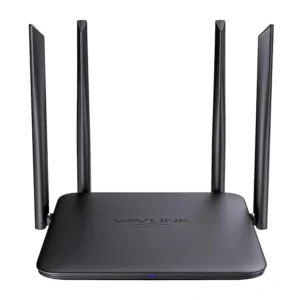
After accessing the setup interface follow the on-screen instructions to configure your device. First of all choose Access Point (AP) mode thereafter, set your WiFi network name, choose a strong password, and adjust security settings. You can also customize channels and frequency bands for better performance of the device. Proper configuration of the wavlink AP device gives you the surety of stable coverage and fast internet speed.
Save The Changes
Once all settings are configured by you you need to save the changes to apply it. You have to click on the Save or Apply button. The Wavlink device may reboot itself to apply the settings. Do not unplug or power off the wavlink AP device during this process.
Connect Us
If you face any difficulty in performing the Wavlink AP setup & need help from experts then you can connect our team. You can connect our support team on call. The number to contact the team is specified below. They can help you resolve setup-related issues quickly. You can also text us in the live chat section on our website for instant help. Hurry to Call!